

How To Resolve Cpanel “IP Address Has Changed” Error
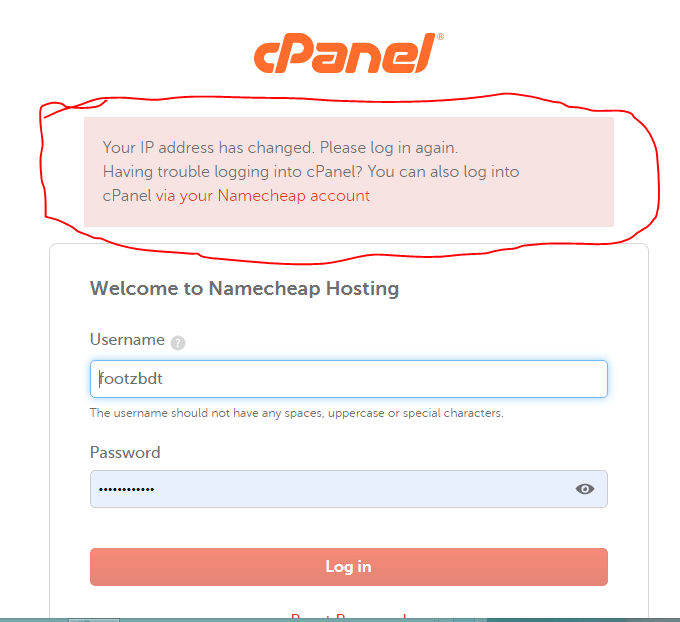
You keep getting logged out of your website’s Cpanel account every time and it’s very annoying. Without hassle, I would like to show you how to fix this ASAP for free without involving anything technical but first I would like to run you through some major causes of this issue.
What’s the cause of this error
This setting validates IP addresses for cookie-based logins. This denies attackers the ability to capture cPanel session cookies in order to gain access to your cPanel & WHM interfaces.
In order to provide you with maximum security, on our platform, Cookie IP validation is set to strict — The system requires that the access IP address and the cookie IP address match exactly.
Otherwise, it will log you out automatically and you will see the error “Your IP has changed. Please login again“.
How To Easily Resolve This Without Involving Many Technicalities
Step 1
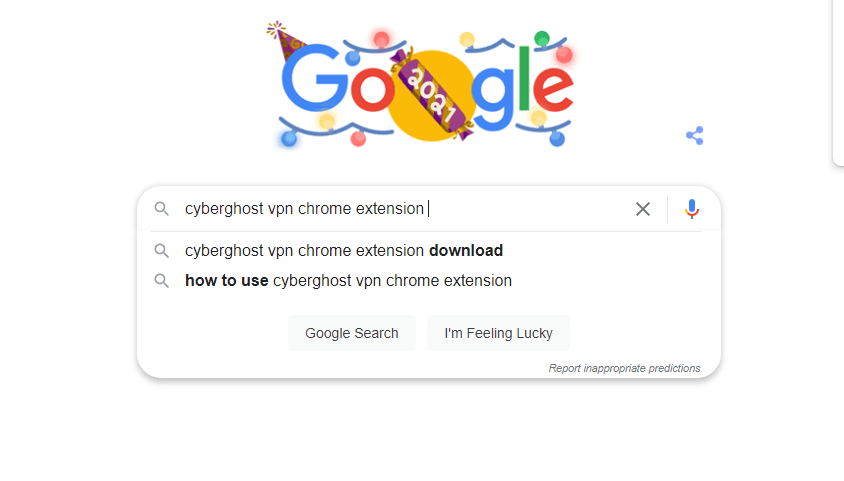
Go to Google and search Cyberghost VPN Chrome Extention Or simply follow the link Click Here.
Step 2
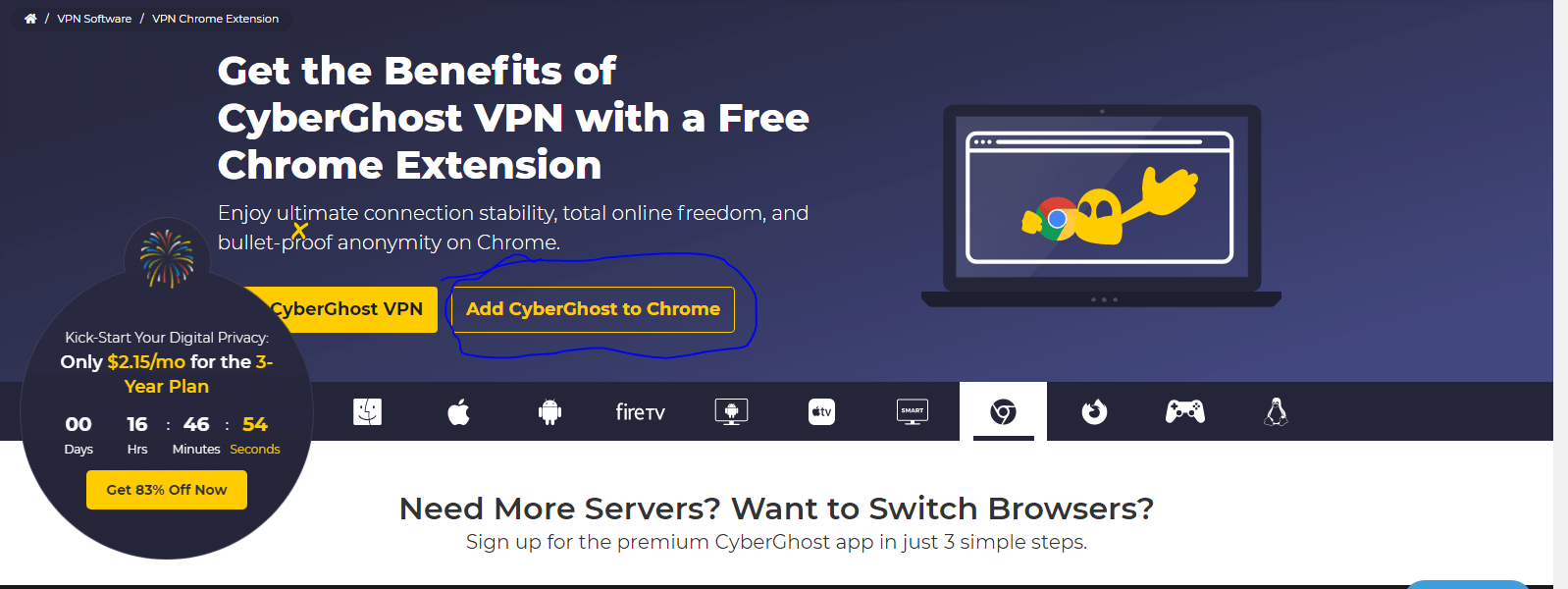
Click on the Add to chrome extension button
Step 3
Go to your chrome extension tab and pin the VPN to your extension tab.
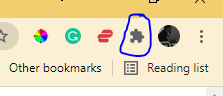
After Pinning the Extention it’ll be added your pinned tabs at the top
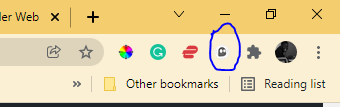
Step 4
Click on the CyberGhost extension and you’ll get a popup, click on the connect sign and wait for connection.
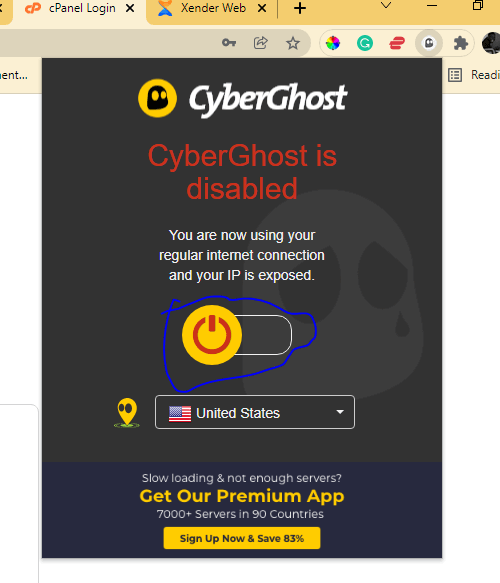
Now after all of this, log into your website Cpanel using the URL “www.yourdomainname.com/cpanel” Input your login details and you’ll be logged into a stable network.
Learn how to log into your website Cpanel without a password Click Here.





1 thought on “How To Resolve Cpanel IP Address Has Changed Error”
Pingback: How To Login To Your Website Cpanel : Legittideas