

What is Cpanel
Cpanel is also known as Control Panel and today I’m going to guide you on how to log into your website’ using various methods.
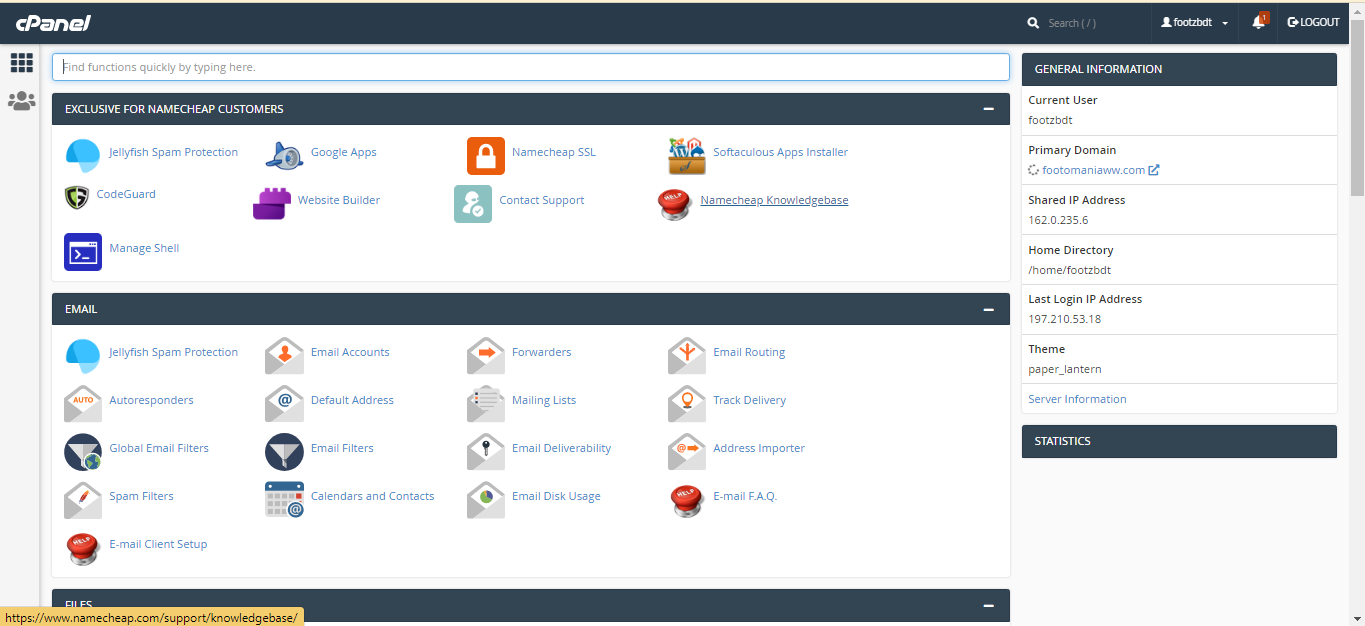
How To Login To Your Websites Cpanel
Login Method 1
Visit ” www.yourwebsitedomainname.com/cpanel ” 
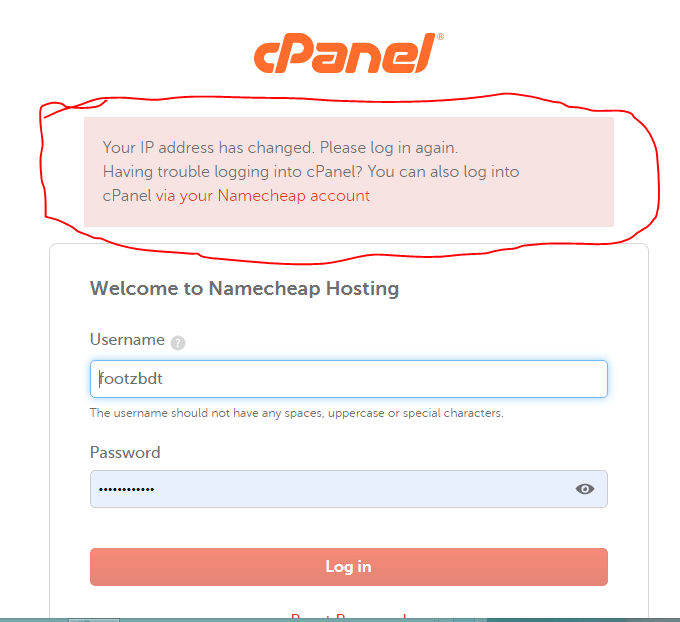
Then input your website Cpanel login details
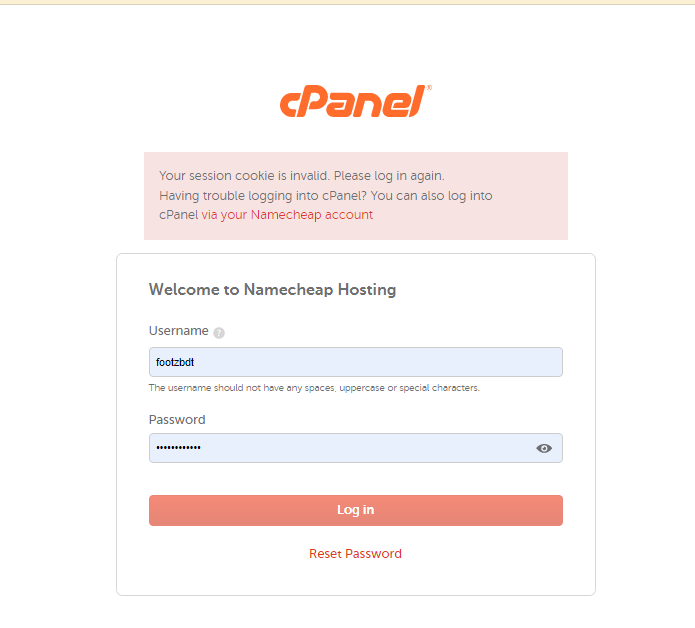
Cpanel Login Method 2
With this second login method, you can log into your website Cpanel account without Username or password.
Login to your website Hosting account Now this depends on the website you’re hosting with so the looks might differ.
From the list of domains, you would see an option to log in to your website Cpanel.
I’m hosting with Namecheap, and here’s the step-by-step method on how to do it.
Step 1 – Visit Namecheap from the top click on the “Sign In” Tab and login using your Namecheap Username and Password. 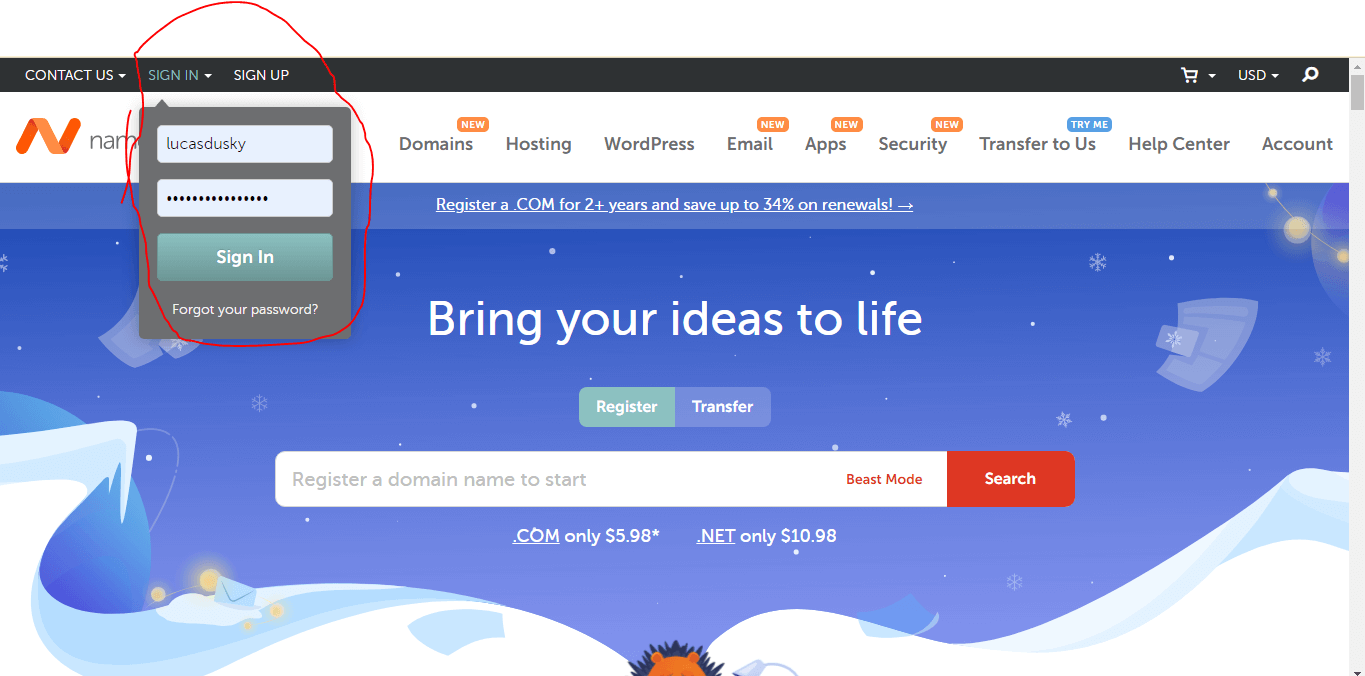
Login to your websites Cpanel without Password
Step 2 – After logging in you’ll be redirected to your account Dashboard. Click on the Hosting List Tab, and you’ll see a list of your hosting accounts. By the side you’ll see an option which indicates “Go to Cpanel” Click on it and Youll be redirected to your websites cpanel.
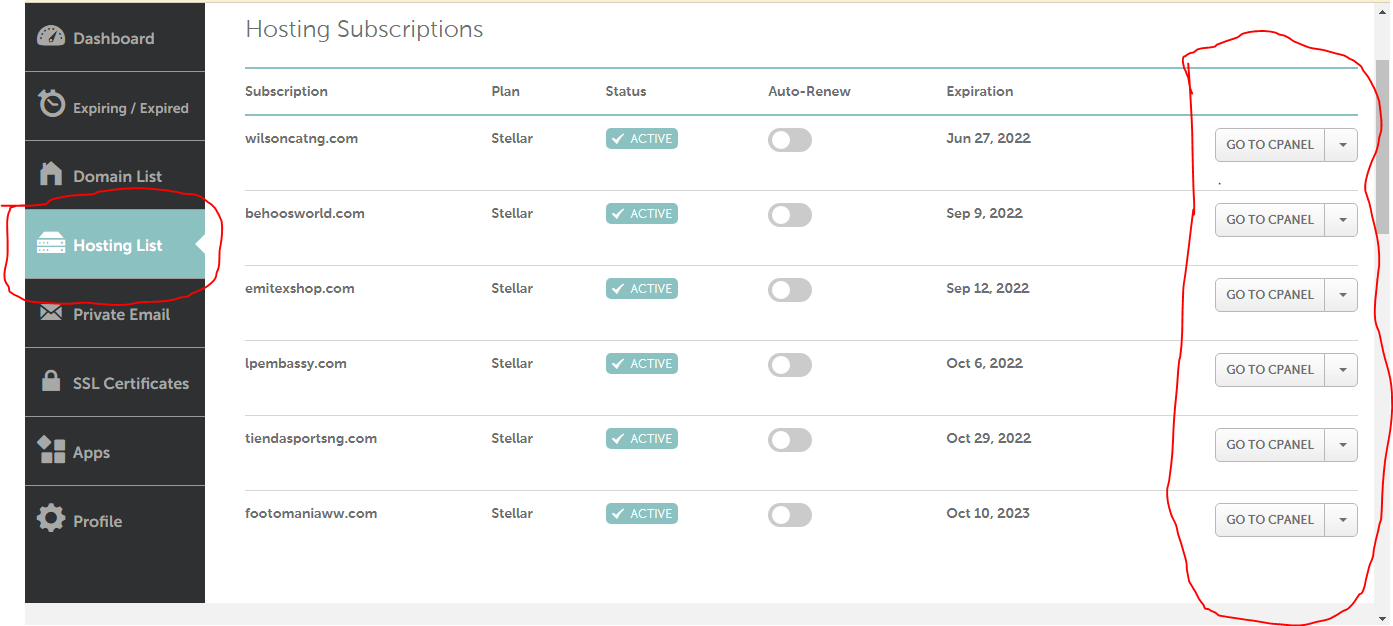
Note: If your login attempt failed due to ” IP address expired error” here’s how to fix this click here







1 thought on “How To Login To Your Website Cpanel”
Pingback: How To Resolve Cpanel IP Address Has Changed Error : Legittideas