
How to stop Elementor from automatically updating
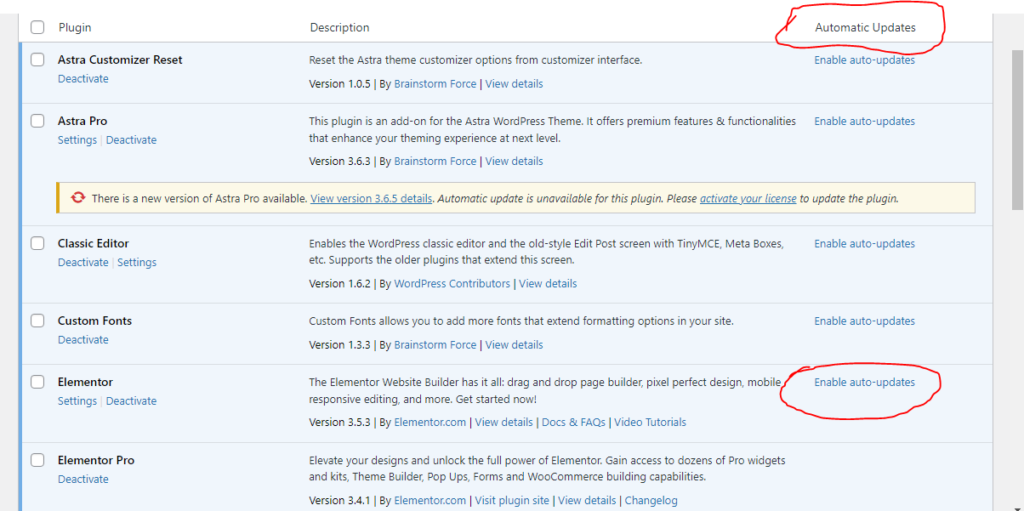
If your elementor keeps automatically updating itself even after you’ve turned off auto-update from the plugin section, then you’re in the right place because I’ll provide the solution to this for you.
I had a similar issue with one of my client’s websites, elementor automatically updated and caused some malfunctions in the website.
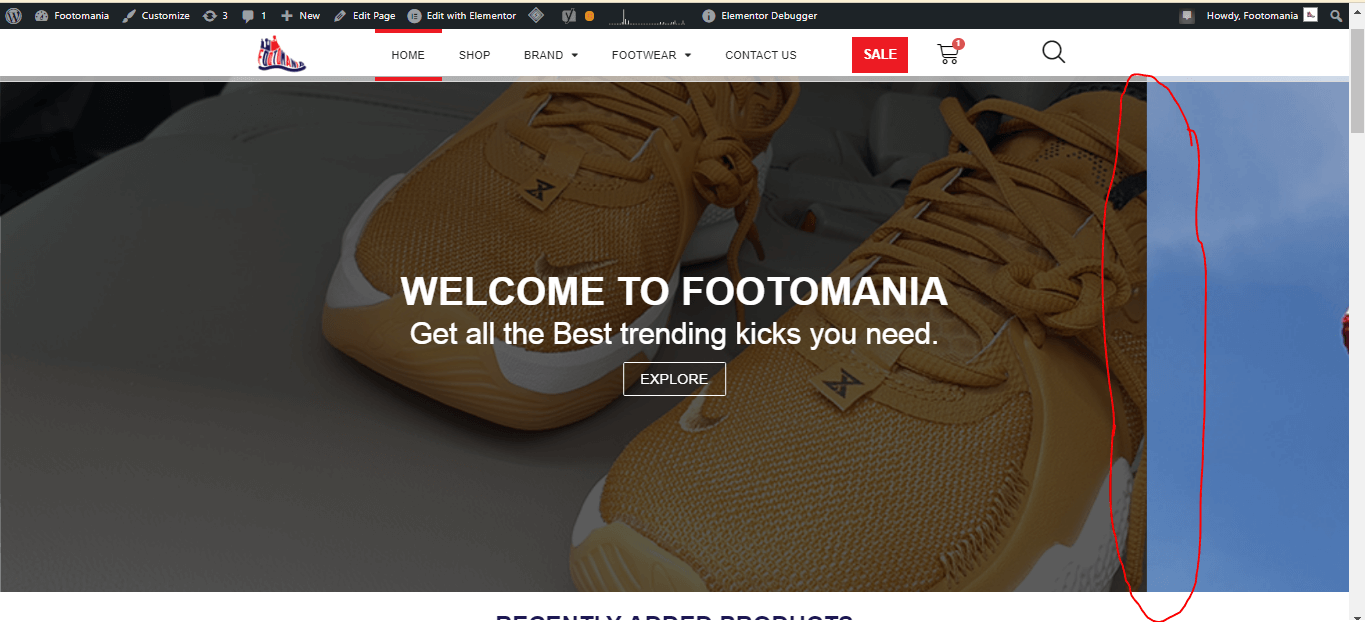
At first, I wasn’t aware that it was an update that was causing the issue. I tried using several methods to restore the site back to normal but it didn’t work. Then I simply did a backup rollback from WordPress and the problem was fixed.
24hours later same issue happened then I figured it was an update from elementor that was causing it. Now to my surprise elementor auto-updated itself even though this feature was off from the plugin section.
I did a rollback from the elementor tool section and the site was back to normal but 24hours later it automatically updated again scattering my designs.
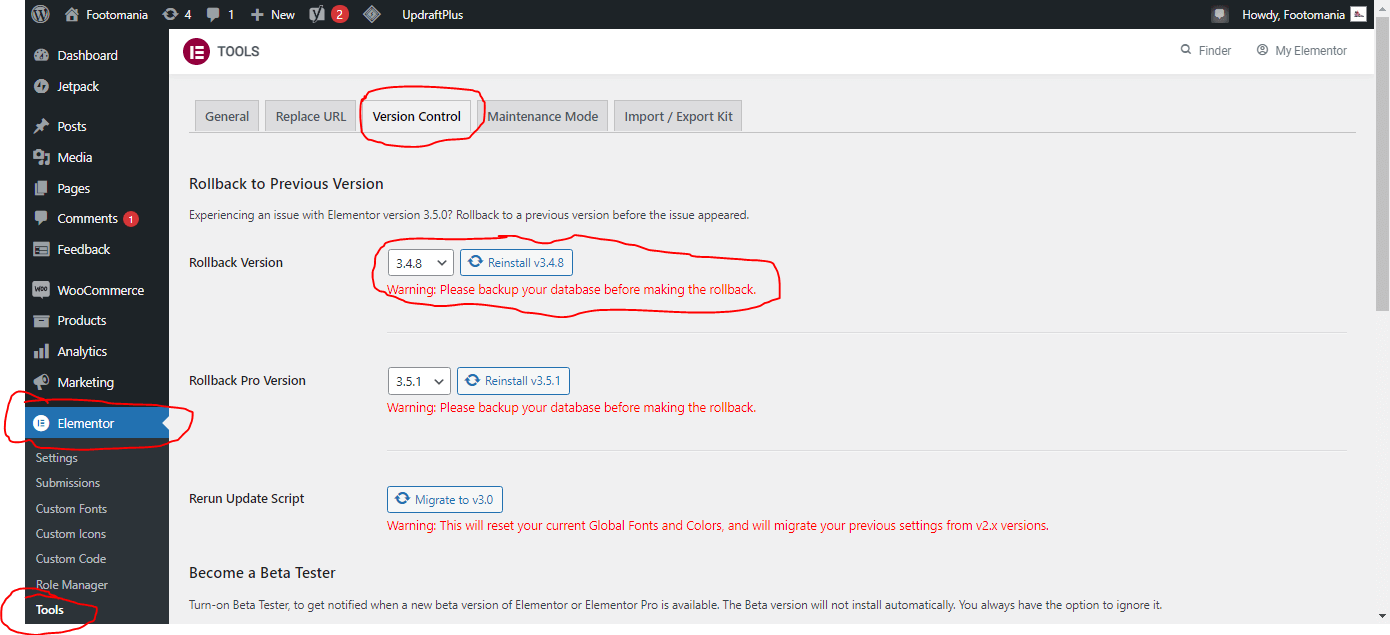
Now I was getting pissed because this feature was turned off already from my plugin section, I contacted the elementor support team and they said it was not from their end, The elementor officials said they don’t auto-update any plugins themselves. I was asked to contact my hosting provider.
I host with Namecheap and I contacted Namecheap support they gave me a plugin for tryouts, I used the plugin to try it out, waited for 24hours but still got the same issue.
THE SOLUTION
How to permanently disable elementor from automatically updating itself.
If any method has not worked for you, then this will surely do it for you.
Stay till the end
1. log in to your website Cpanel, Using your username and password.
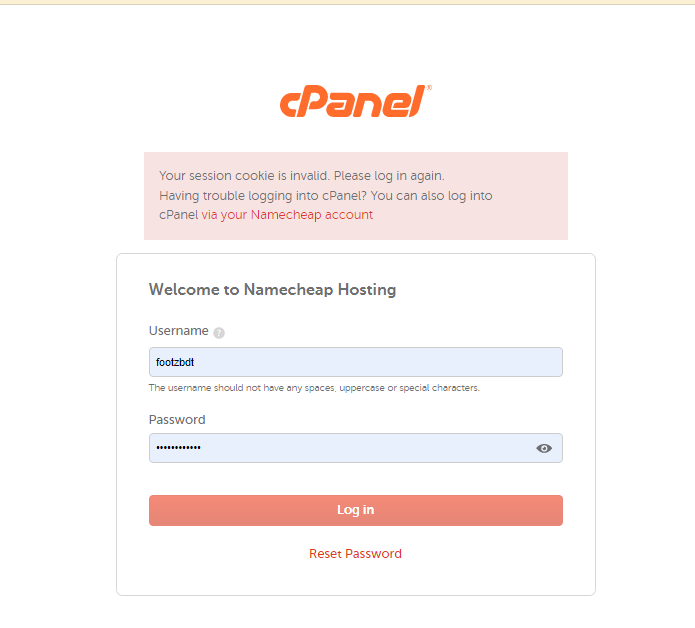
To login to your website Cpanel

use the URL ” www.yourdomainname.com/cpanel ”
You can also log in to your Cpanel through your hosting account panel depending on your hosting company.
if you are having issues logging into your sites Cpanel click here for solutions
2. Navigate to Softaculous App Installer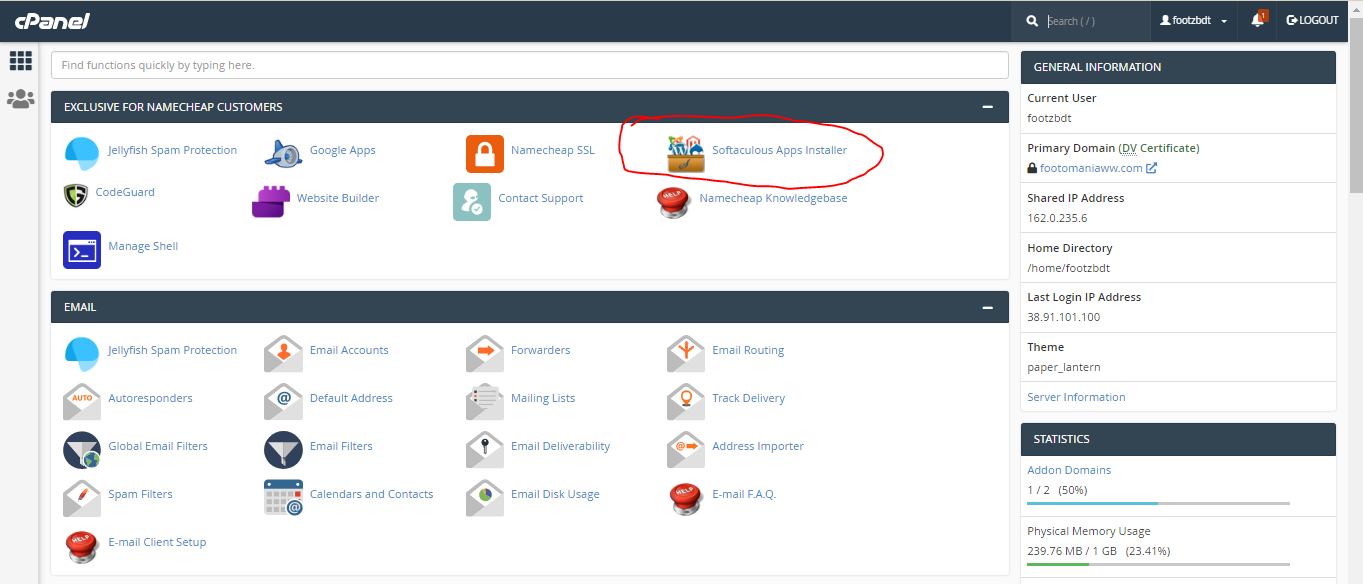
3. From the Softaculous App click on the WordPress logo
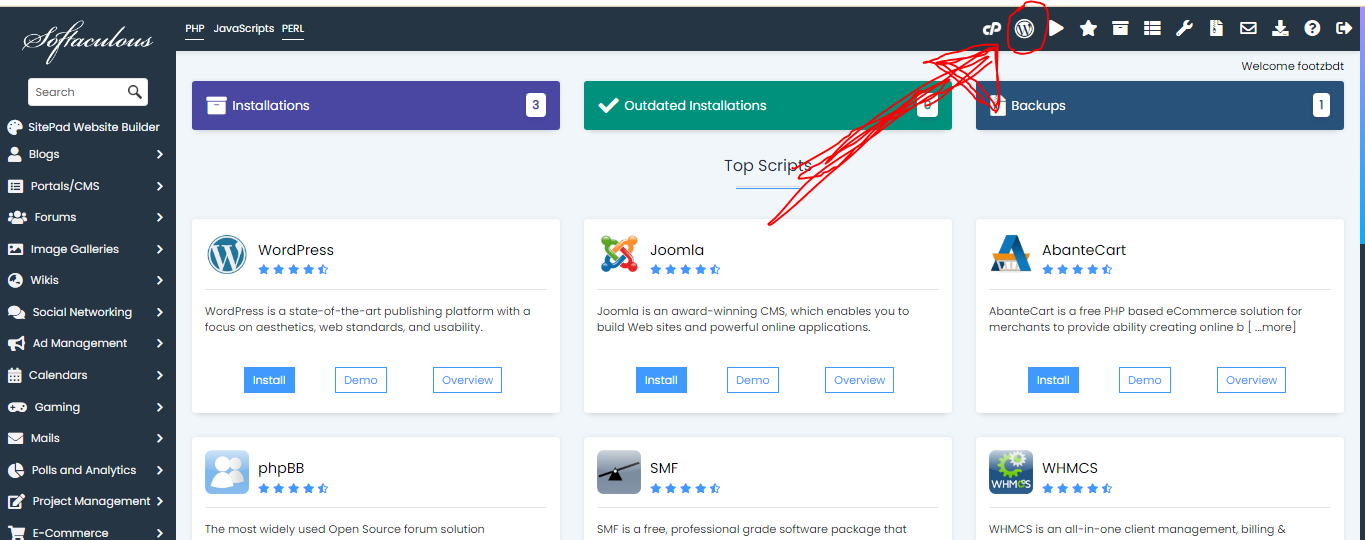
4. After clicking on the WordPress symbol you’ll get a list of domains installed on WordPress, click on the arrow 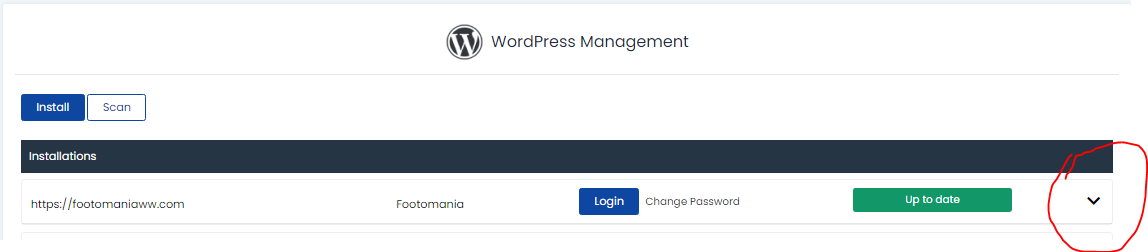
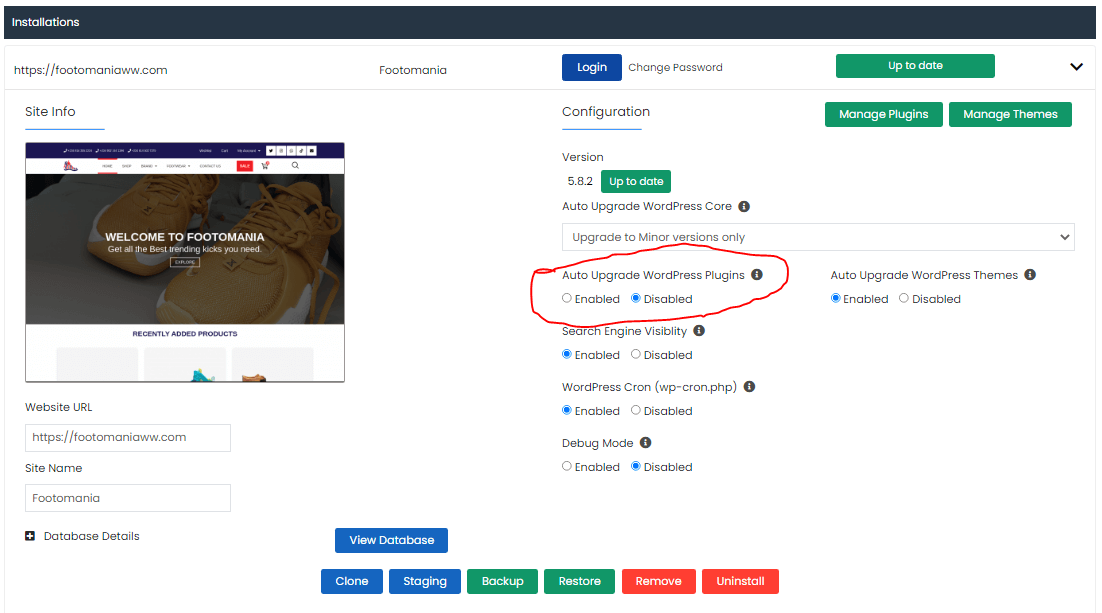
A list of drop-down will collapse and over there you’ll see an option to disable auto upgrade from plug-ins.
Select the ” Disable auto WordPress upgrade ” and the settings will save automatically.